> ## Documentation Index
> Fetch the complete documentation index at: https://docs.spread.so/llms.txt
> Use this file to discover all available pages before exploring further.

# 이메일을 웹 링크로 공유하기

> 발송한 이메일을 웹 페이지 링크로 공유하는 방법을 안내합니다.

## Overview

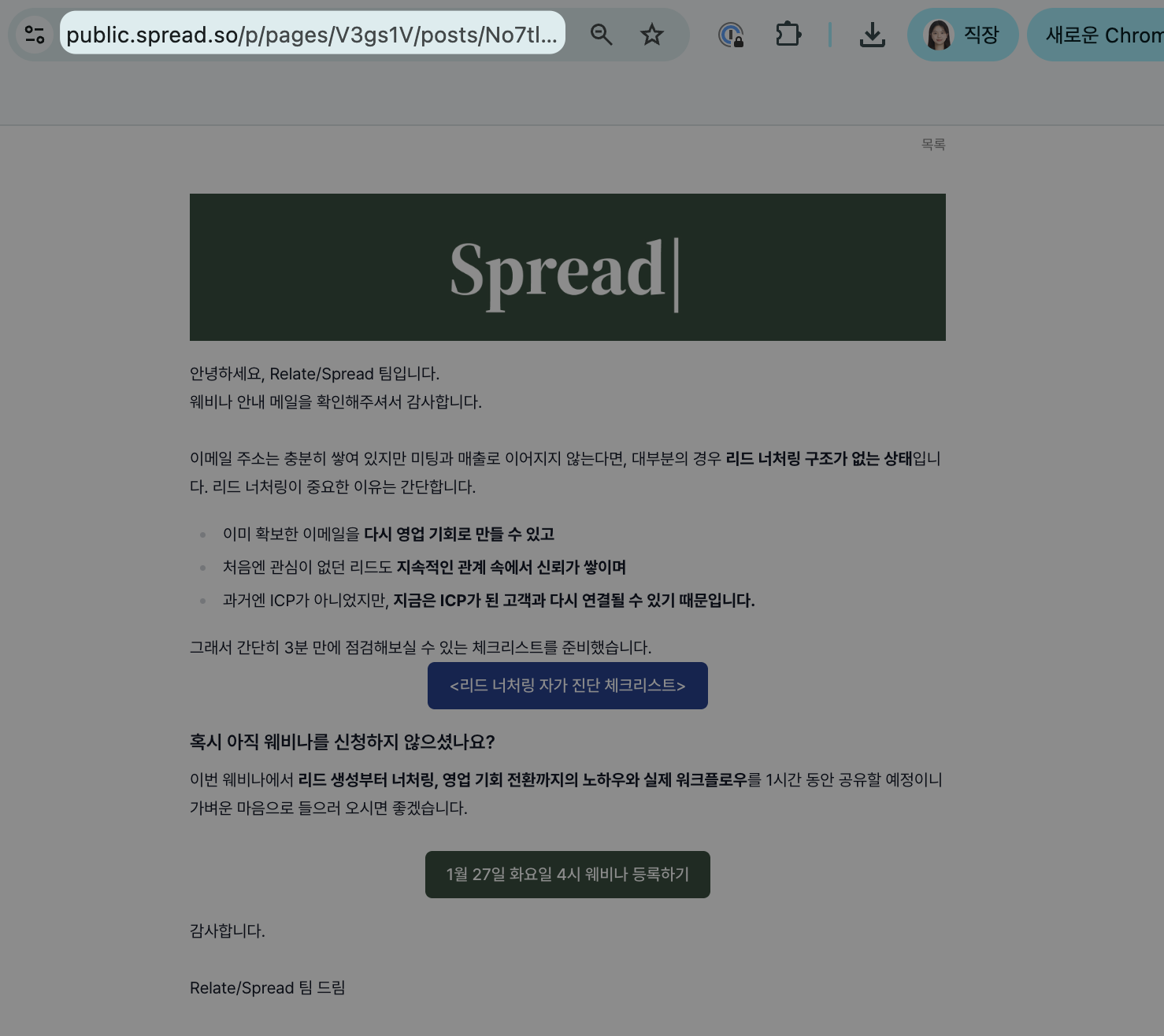
Spread에서 발송된 캠페인 또는 자동화 캠페인을 웹 링크로 발행하여 외부에 공유할 수 있습니다. 이메일을 실제로 받지 않은 사람도, 링크만으로 동일한 내용을 브라우저에서 확인할 수 있습니다.
슬랙, 메신저, 노션, 문서, 고객 전달용 자료 등 다양한 용도로 활용해 보세요.

<div style={{ display: "flex", justifyContent: "center", marginTop: "10px" }}>
  <img src="https://mintcdn.com/relate-2lkj43/_y89u6YzouFn-k27/images/email_link/Cms.png?fit=max&auto=format&n=_y89u6YzouFn-k27&q=85&s=6b89bcbe966f16c642b2c9150b8190e6" alt="웹링크 공유 화면 3" style={{ width: "100%", maxWidth: "900px", height: "auto", boxShadow: "0 12px 30px rgba(0, 0, 0, 0.18)", borderRadius: "8px" }} width="1478" height="1316" data-path="images/email_link/Cms.png" />
</div>

<br />

## 공유 링크 생성 방법

### (1) 캠페인에서 공유 링크를 생성하는 경우

<div style={{ display: "flex", justifyContent: "center", marginTop: "10px" }}>
  <img src="https://mintcdn.com/relate-2lkj43/_y89u6YzouFn-k27/images/email_link/makelink_cp.png?fit=max&auto=format&n=_y89u6YzouFn-k27&q=85&s=ffe3088d8f15e8dd75fd7ae75218a046" alt="웹링크 공유 화면 2" style={{ width: "100%", maxWidth: "900px", height: "auto", boxShadow: "0 12px 30px rgba(0, 0, 0, 0.18)", borderRadius: "8px" }} width="2502" height="1478" data-path="images/email_link/makelink_cp.png" />
</div>

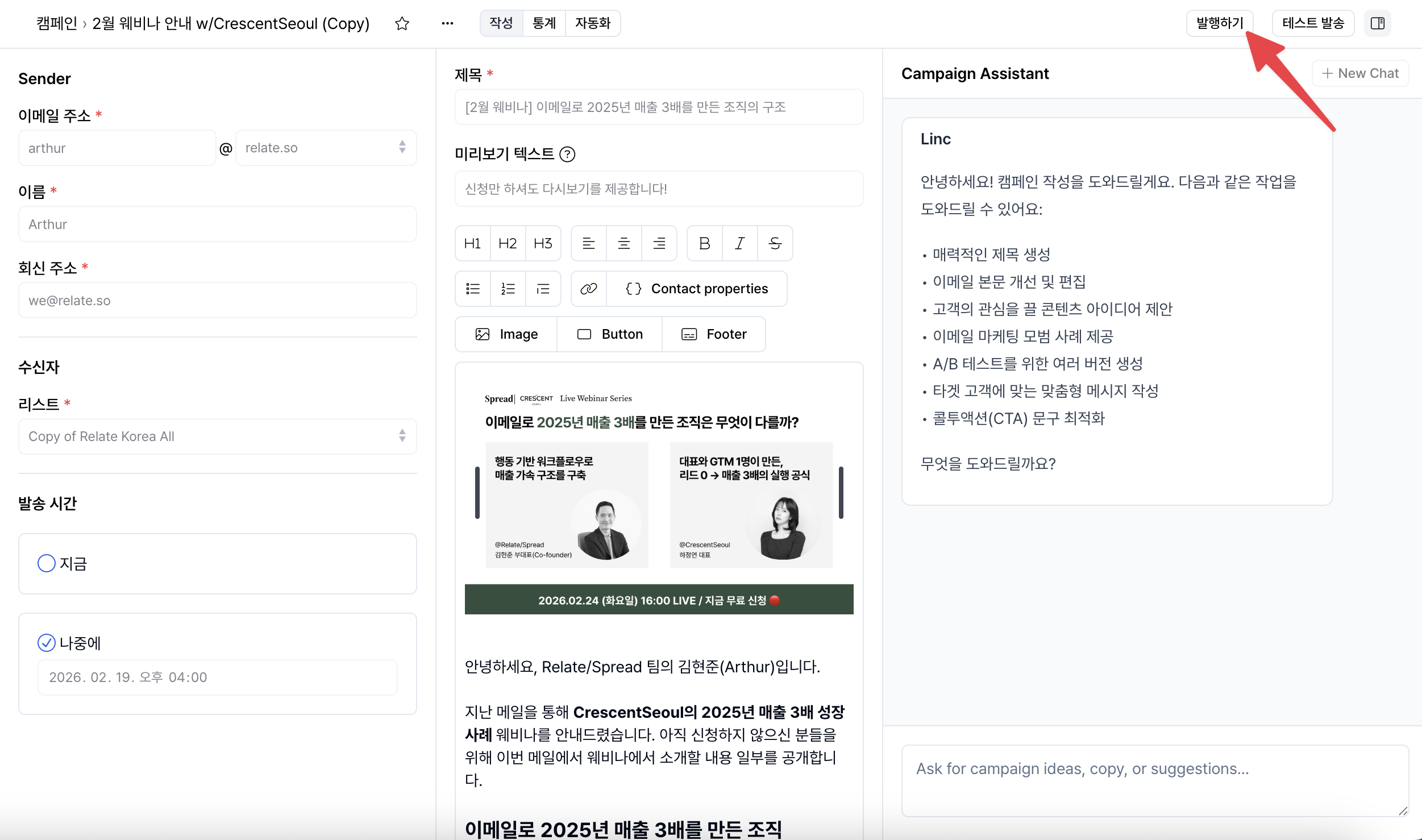
1. 발송이 완료된 캠페인의 상세 페이지로 이동합니다.
2. 우측 상단의 `발행하기` 버튼을 클릭합니다.
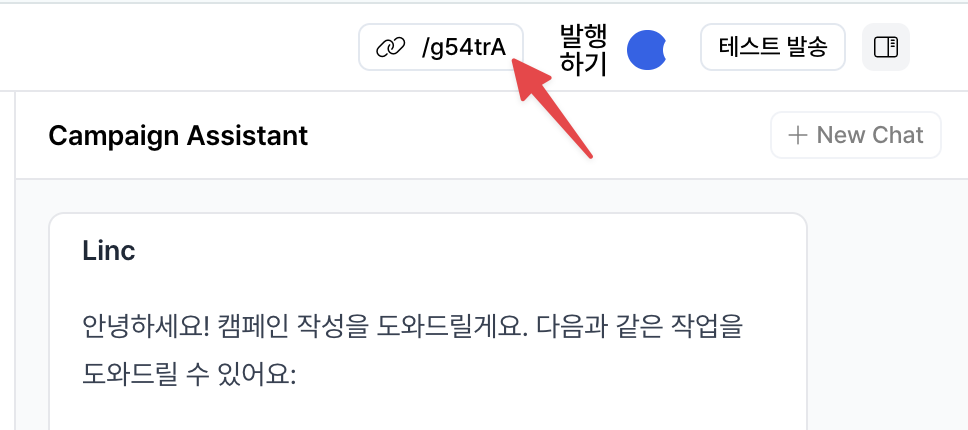
3. 우측 상단에 새로 생성된 웹 링크를 복사하여 공유합니다.

<div style={{ display: "flex", justifyContent: "center", marginTop: "10px", marginBottom: "10px" }}>
  <img src="https://mintcdn.com/relate-2lkj43/_y89u6YzouFn-k27/images/email_link/clicklink.png?fit=max&auto=format&n=_y89u6YzouFn-k27&q=85&s=8022545b345facea066cccc41d0abe46" alt="웹링크 클릭 화면" style={{ width: "60%", height: "auto", boxShadow: "0 12px 30px rgba(0, 0, 0, 0.18)", borderRadius: "8px" }} width="968" height="430" data-path="images/email_link/clicklink.png" />
</div>

<div style={{ height: "8px" }} />

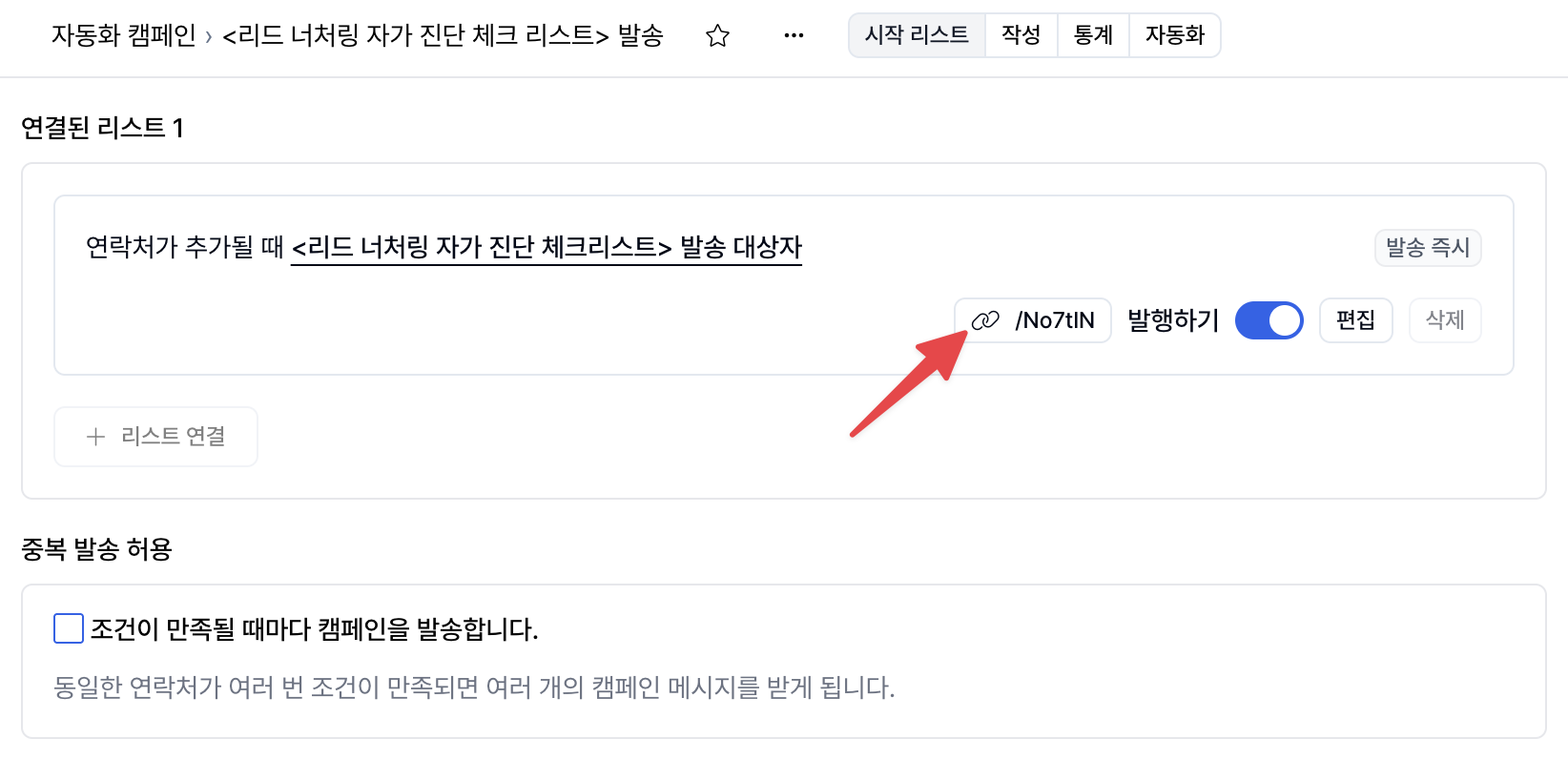
### (2) 자동화 캠페인에서 공유 링크를 생성하는 경우

<div style={{ display: "flex", justifyContent: "center", marginTop: "6px" }}>
  <img src="https://mintcdn.com/relate-2lkj43/_y89u6YzouFn-k27/images/email_link/makelink.png?fit=max&auto=format&n=_y89u6YzouFn-k27&q=85&s=13c8398d10e97e4d92f196326fdb8edd" alt="웹링크 공유 화면 1" style={{ width: "100%", maxWidth: "900px", height: "auto", boxShadow: "0 12px 30px rgba(0, 0, 0, 0.18)", borderRadius: "8px" }} width="1590" height="844" data-path="images/email_link/makelink.png" />
</div>

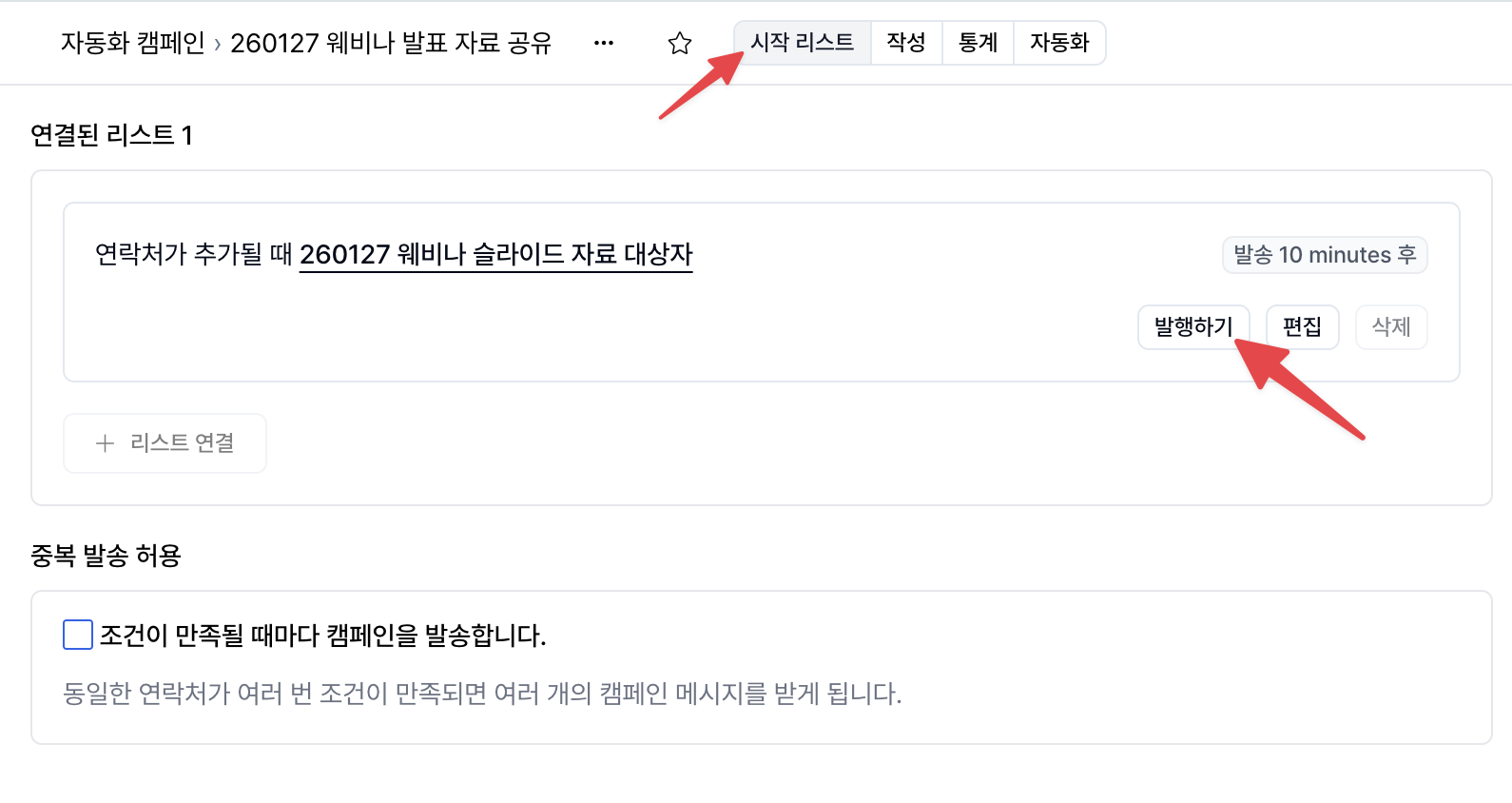
1. 발송이 완료된 자동화 캠페인의 상세 페이지로 이동합니다.
2. 상단의 `시작리스트` 탭에서 `발행하기` 버튼을 클릭합니다.
3. `발행하기`버튼 옆에 생성된 웹 링크를 복사하여 공유합니다.

<div style={{ display: "flex", justifyContent: "center", marginTop: "10px", marginBottom: "10px" }}>
  <img src="https://mintcdn.com/relate-2lkj43/_y89u6YzouFn-k27/images/email_link/clicklink_tc.png?fit=max&auto=format&n=_y89u6YzouFn-k27&q=85&s=3a1ee0b40e1260bfa241be2e720cbe70" alt="웹링크 클릭 화면" style={{ width: "80%", height: "auto", boxShadow: "0 12px 30px rgba(0, 0, 0, 0.18)", borderRadius: "8px" }} width="1644" height="818" data-path="images/email_link/clicklink_tc.png" />
</div>

<br />

## 공유 링크 생성 조건

* **발송 완료된 캠페인/자동화 캠페인만** 웹 링크 생성이 가능합니다.
* 초안 상태(작성 중)에는 `발행하기` 버튼이 표시되지 않습니다. 즉, 발송 후에만 웹 링크를 생성할 수 있습니다.
* 초안 상태에서 공유하고 싶은 경우에는, 다음 방법으로 공유할 수 있습니다:
  * 브라우저 상단 주소창의 페이지 URL을 그대로 복사하여 전달
  * 해당 워크스페이스 접근 권한이 있는 팀원만 열람 가능
  * 외부 사용자에게는 초안 상태 공유 불가

<br />

## 향후 업데이트 예정

향후에는 발행된 이메일을 한곳에 모아 볼 수 있는 페이지가 제공될 예정이며, 해당 페이지에서 방문자가 이메일을 입력하면 구독 리스트에 바로 추가할 수 있는 기능도 지원할 계획입니다.